
The following components are required for this lesson.
| Components |
|---|
| Arduino Board |
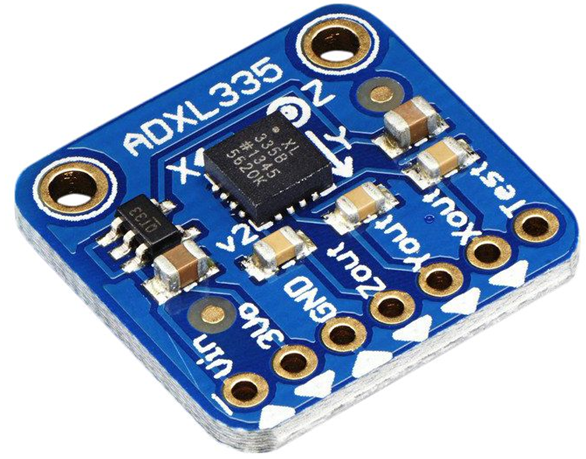
| ADXL335 Accelerometer sensor |
| Breadboard |
| Breadboard wire links |
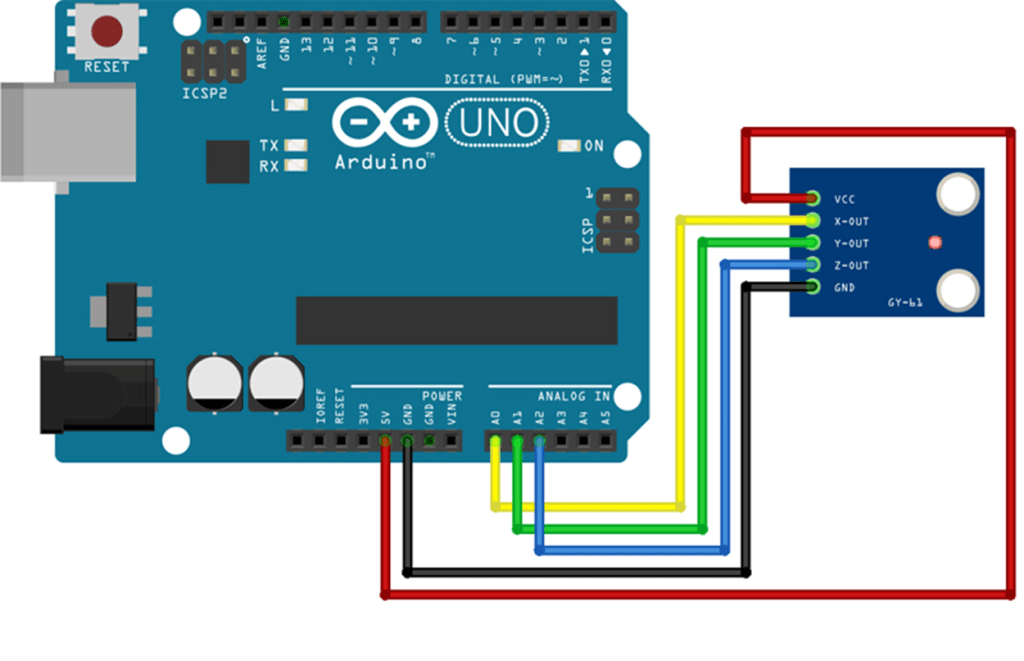
Arduino – Accelerometer Sensor Wiring Diagram
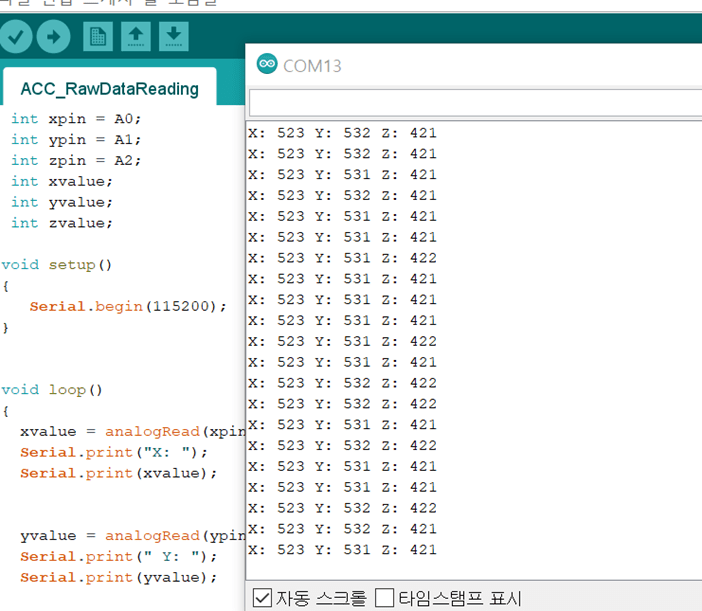
Accelerometer Sensor Reading Code in Arduino
 int xpin = A0;
 int ypin = A1;
 int zpin = A2;
 int xvalue;
 int yvalue;
 int zvalue;

void setup()
{
   Serial.begin(115200);          // initialize the serial communications:
}

void loop()
{
  xvalue = analogRead(xpin);
//reads values from x-pin & measures acceleration in X direction
  Serial.print("X: ");
  Serial.print(xvalue);
  yvalue = analogRead(ypin);
  Serial.print(" Y: ");
  Serial.print(yvalue);
  zvalue = analogRead(zpin);
  Serial.print(" Z: ");
  Serial.print(zvalue);
  Serial.println();
  delay(100);
}
Output:
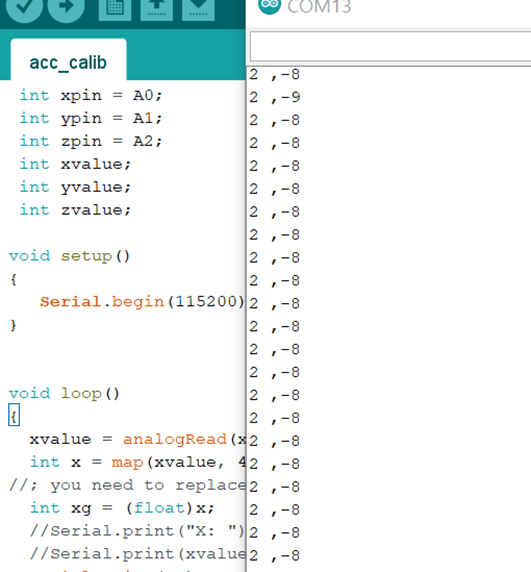
Accelerometer Sensor G value Reading for Game Application
 int xpin = A0;
 int ypin = A1;
 int zpin = A2;
 int xvalue;
 int yvalue;
 int zvalue;

void setup()
{
   Serial.begin(115200);          // initialize the serial communications:
}


void loop()
{
  xvalue = analogRead(xpin);                              //reads values from x-pin & measures acceleration in X direction
  int x = map(xvalue, 400, 600, -10, 10);               //maps the extreme ends analog values from -100 to 100 for our understanding
//; you need to replace the 267 & 400 value with your values from calibration
  int xg = (float)x;                          //converts the mapped value into acceleration in terms of "g"
  //Serial.print("X: ");
  //Serial.print(xvalue);
  Serial.print(xg);                                       //prints value of acceleration in X direction
  Serial.print(" ,");
//  Serial.print("g   ");                                   //prints "g"

 // yvalue = analogRead(ypin);
 // int y = map(yvalue, 400, 400, -100, 100);
 // float yg = (float)y/(-10);
//  Serial.print(" Y: ");
//  Serial.print(yvalue);
  //Serial.print(" ,");
 // Serial.print("\t");
//  Serial.print(yg);
 // Serial.print("g   ");

  zvalue = analogRead(zpin);
  int z = map(zvalue,400, 600, -10, 10);
  int zg = (float)z;
 // Serial.print("\t");
  //Serial.print(" Z: ");
  //Serial.print(zvalue);
 // Serial.println();
  Serial.println(zg);
//  Serial.println("g   ");
  delay(100);
}
Output:
Ball Control Game in Python Pygame
import serial  # import Serial Library
import numpy  # Import numpy
import pygame
import sys

arduinoData = serial.Serial('COM13', 115200)  # Creating our serial object named arduinoData

SCREEN_WIDTH = 640
SCREEN_HEIGHT = 480

white = (255, 255, 255)
black = (0, 0, 0)

pos_x = 200
pos_y = 200

color1 = (192, 192, 192)
color2 = (153, 0, 0)


pygame.init()
pygame.display.set_caption("Game by Osman Gul")

screen = pygame.display.set_mode((SCREEN_WIDTH, SCREEN_HEIGHT))
clock = pygame.time.Clock()

while True:  # While loop that loops forever
    while (arduinoData.inWaiting() == 0):  # Wait here until there is data
        pass  # do nothing
    arduinoString = arduinoData.readline()  # read the line of text from the serial port
    arduinoString = arduinoString.decode('UTF-8').strip()
    dataArray = arduinoString.split(',')  # Split it into an array called dataArray
    print(dataArray)
    x = int(dataArray[0].strip())
    z = int(dataArray[1].strip())

    clock.tick()
    for event in pygame.event.get():
        if event.type == pygame.QUIT:
            sys.exit()


    if z>0:
        pos_x += 5

    if z < 0:
        pos_x -= 5

    if x > 0:
        pos_y += 5

    if x < 0:
        pos_y -= 5

    screen.fill(color1)
    pygame.draw.circle(screen, color2, (pos_x, pos_y), 20)
    pygame.display.update()
Output:
Ping-Pong Game with Accelerometer Sensor Code in Python Pygame
import pygame
import random
import serial

arduinoData = serial.Serial('COM13', 115200)

# Initialize Pygame
pygame.init()
pygame.display.set_caption("Accelerometer Game by Osman Gul")
# Set the screen size
screen_width = 400
screen_height = 400
screen = pygame.display.set_mode((screen_width, screen_height))

# Set the game clock
clock = pygame.time.Clock()

# Set the colors
BLACK = (0, 0, 0)
WHITE = (255, 255, 255)

# Set the font
font = pygame.font.SysFont('Arial', 30)

# Set the ball properties
ball_pos = [screen_width // 2, screen_height // 2]
ball_radius = 10
ball_speed = [5, 5]

# Set the paddle properties
paddle_width = 100
paddle_height = 10
paddle_speed = 5

paddle_pos = [(screen_width - paddle_width) // 2, screen_height - paddle_height]

# Set the score
score = 0

# Main game loop
running = True
while running:
    while (arduinoData.inWaiting() == 0):  # Wait here until there is data
        pass  # do nothing
    arduinoString = arduinoData.readline()  # read the line of text from the serial port
    arduinoString = arduinoString.decode('UTF-8').strip()
    data = int(arduinoString)
    #print(data)

    #data = ser.readline().decode().strip()

    # Handle events
    for event in pygame.event.get():
        if event.type == pygame.QUIT:
            running = False

    # Move the paddle
    if data< 0:
        paddle_pos[0] -= paddle_speed
    if data> 0:
        paddle_pos[0] += paddle_speed

    # Move the ball
    ball_pos[0] += ball_speed[0]
    ball_pos[1] += ball_speed[1]

    # Check for ball collision with the walls
    if ball_pos[0] <= ball_radius or ball_pos[0] >= screen_width - ball_radius:
        ball_speed[0] = -ball_speed[0]
    if ball_pos[1] <= ball_radius:
        ball_speed[1] = -ball_speed[1]

    # Check for ball collision with the paddle
    if ball_pos[1] >= paddle_pos[1] - ball_radius and paddle_pos[0] <= ball_pos[0] <= paddle_pos[0] + paddle_width:
        ball_speed[1] = -ball_speed[1]
        score += 1

    # Check for game over
    if ball_pos[1] >= screen_height:
        running = False

    # Draw the game objects
    screen.fill(BLACK)
    pygame.draw.circle(screen, WHITE, ball_pos, ball_radius)
    pygame.draw.rect(screen, WHITE, (paddle_pos[0], paddle_pos[1], paddle_width, paddle_height))
    score_text = font.render('Score: ' + str(score), True, WHITE)
    screen.blit(score_text, (20, 20))
    #print(data)
    # Update the screen
    pygame.display.flip()

    # Set the game speed
    clock.tick(60)

print("Score =", score)

# Quit Pygame
pygame.quit()
Ping-Pong Game with Accelerometer Sensor
 Osman Gul
Leave a comment